WellSight application icon

WellSight — screen-distance monitoring for healthier phone habits

WellSight helps people maintain a safer viewing distance while using their phone. It uses the front-facing camera only when monitoring is explicitly enabled, performs processing on-device, and provides clear prompts when the phone is held too close (for example, closer than ~30 cm). Monitoring coverage can be broad by default (monitor all apps with exclusions) or configured to specific apps—so you get support where you need it, without compromising privacy.

Privacy-first Android (MAUI) On-device processing Foreground service + notification Monitor all apps + exclusions Smart Alerts + voice reminders
Available only on Android
Download WellSight

Quick navigation

This page describes WellSight end-to-end: who it’s for, how monitoring works, what permissions are required (and why), what the main screens do, and what data is (and is not) collected.

What WellSight optimises for

  • Actionable feedback

    Clear prompts when the device is too close, plus summaries so you can improve over time.

  • Privacy by design

    On-device processing, no cloud dependency for core monitoring, and user-controlled permissions.

  • Control and transparency

    Choose broad coverage (monitor all apps) or limit to specific apps, with visible indicators (notification + overlay) while monitoring runs.

Overview

WellSight is a wellbeing utility that encourages safer viewing distance while you use your phone. It detects when the phone is held too close (for example, under ~30 cm) and nudges you to move it away. Monitoring can be broad (monitor all apps, with exclusions) or configured per-app so you get help where it matters most.

Important: WellSight is not a medical device and does not diagnose, treat, or prevent any condition. It provides habit-support and informational feedback only.

Who it’s for

WellSight is designed for anyone who wants a lightweight reminder to keep healthier screen habits—without exporting personal data or relying on cloud analysis.

Good fit
Readers
People who read long-form content or study on their phone and tend to drift closer over time.
Good fit
Parents
Families who want gentle prompts for healthier device habits (with clear, visible monitoring indicators).
Good fit
Office commuters
Users who browse on the go and hold the phone closer in low-light or crowded environments.
Not intended
Medical use
WellSight does not replace clinical advice—use it as a supportive habit tool.

How it works (high level)

WellSight follows a “only when needed” model: it activates distance checks only when you’ve enabled monitoring, and based on your coverage mode (monitor all apps vs specific apps).

1) Choose coverage: all apps or specific apps

In Settings → Monitoring & Apps you can enable Monitor All Applications (broad coverage) and then add Excluded Apps (apps that should never be monitored). If you switch Monitor All off, you can instead enable monitoring only for specific apps via Per‑App Monitoring.

2) A foreground service runs only while monitoring

When monitoring is enabled, WellSight uses a foreground service with an ongoing notification. While the camera is actively checking distance, the notification clearly shows that distance monitoring is active.

Transparency: The notification exists specifically so users can always tell when camera-backed monitoring is happening.

3) On-device distance estimation

Distance is estimated using front-camera frames processed locally. The design is data-minimised: the app computes a distance estimate and a simple “too close / ok” status rather than storing images.

4) Gentle prompts + logging for insights

If you are detected closer than a configured threshold (commonly ~30 cm), WellSight prompts you to increase distance. Events can be summarised later in Reports.

Permissions & disclosure (what we ask and why)

WellSight aims to keep permissions understandable. It does not request the camera on first launch. Camera access is requested only when you explicitly turn on monitoring.

Core permissions

  • Notifications: used to show the persistent foreground-service notification while monitoring is active (Android 13+ may require explicit notification permission).
  • Usage access: used to detect which app is currently in the foreground so WellSight can apply your monitoring rules (monitor-all with exclusions, or per-app enablement) and label notifications/alerts with the current app where possible.
  • Camera: required to estimate viewing distance using the front camera, only while monitoring is enabled.
  • Foreground service: required to keep monitoring active while you use your phone, with a persistent notification for transparency.
  • Overlay (where supported): used to show a minimal “monitoring active” banner and/or alerts without blocking your screen.

How we keep it policy-friendly

  • User-initiated permission: camera prompts appear only after you enable monitoring.
  • Foreground-only camera use: monitoring is scoped to foreground app usage with visible indicators.
  • Data minimisation: distance is computed on-device; images are not stored or uploaded as part of monitoring.

Main tabs

WellSight is organised around a simple tab layout. The aim is: control monitoring from Settings, check your status on Home, and review trends in Reports.

Tab
Home
High-level monitoring status, quick actions, and basic summaries.
Tab
Reports
Trends and breakdowns: how often “too close” happens, when it happens, and which apps trigger it most.
Tab
Settings
App selection, monitoring toggle, thresholds (where available), permissions, diagnostics, and privacy links.

Onboarding (first run) — step-by-step

WellSight onboarding is intentionally short. It sets the basics (who the app is for, voice alert language/message) and then shows an in-app “More guidance” carousel to help you enable monitoring safely.

Step 1 — Welcome & persona

  • You’ll see Welcome to WellSight and a simple choice: Myself or My child.
  • There’s a clear note: Core monitoring works offline.
  • Privacy Policy and Terms of Use are linked directly on this screen.
  • Tap Continue to proceed.

Step 2 — Voice Alerts setup (TTS language + message)

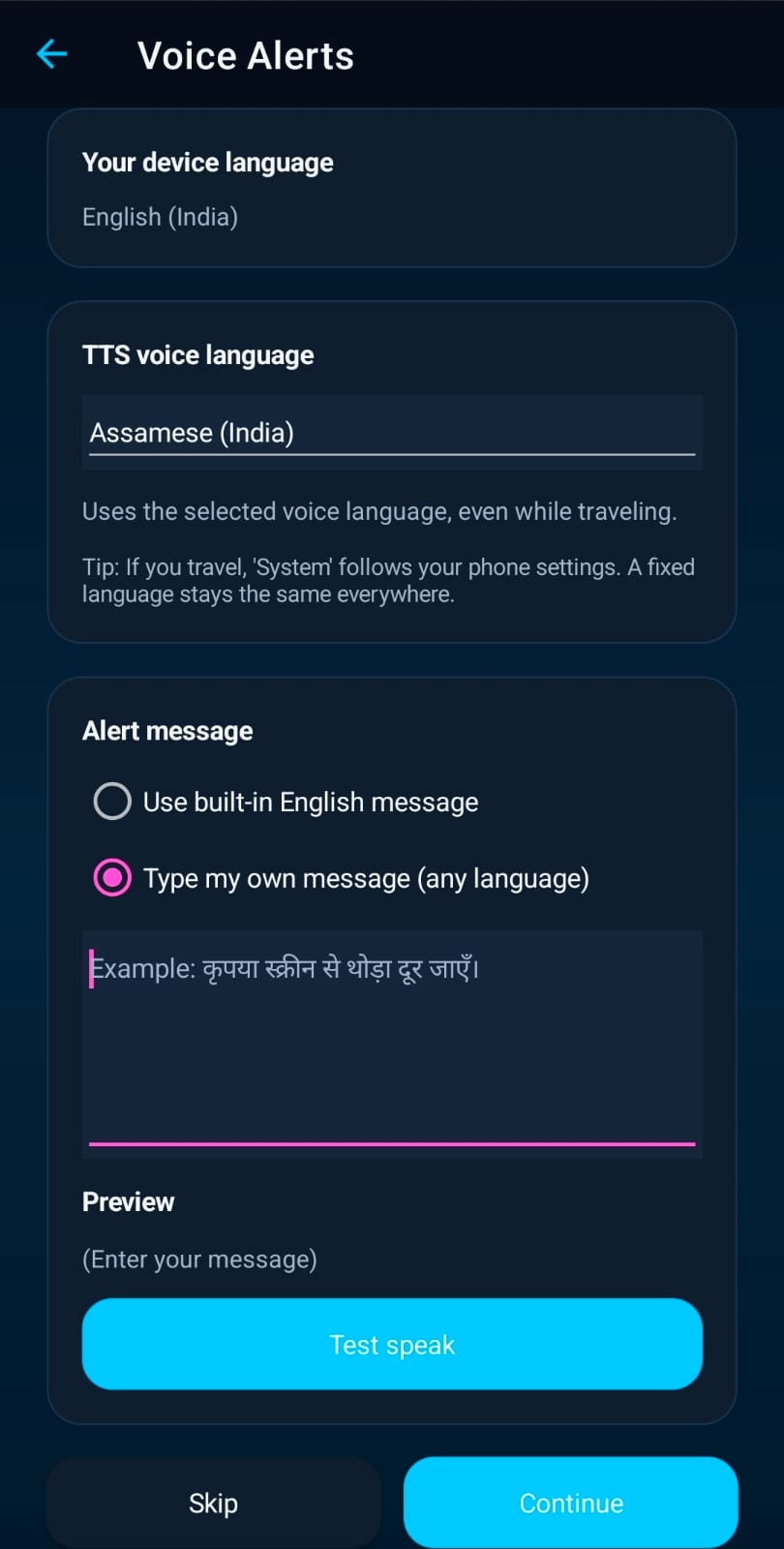
After you tap Continue, WellSight opens Voice Alerts so you can decide what Text‑to‑Speech (TTS) should say and how it should sound.

  • Your device language: shown for clarity.
  • TTS voice language: choose System (follows your phone language), or set a fixed language, or enter a language tag like hi‑IN.
  • Alert message: pick Use built-in English message or Type my own message (any language).
  • Test speak: play a preview to confirm pronunciation and volume.
  • You can Skip and change this later (recommended to complete it once, so voice alerts feel natural).

Setting TTS language later: Settings → Monitoring & Apps includes a quick toggle Speak TTS alerts in English and an Edit action that re-opens the Voice Alerts setup page.

Step 3 — “More guidance” (Monitoring intro carousel)

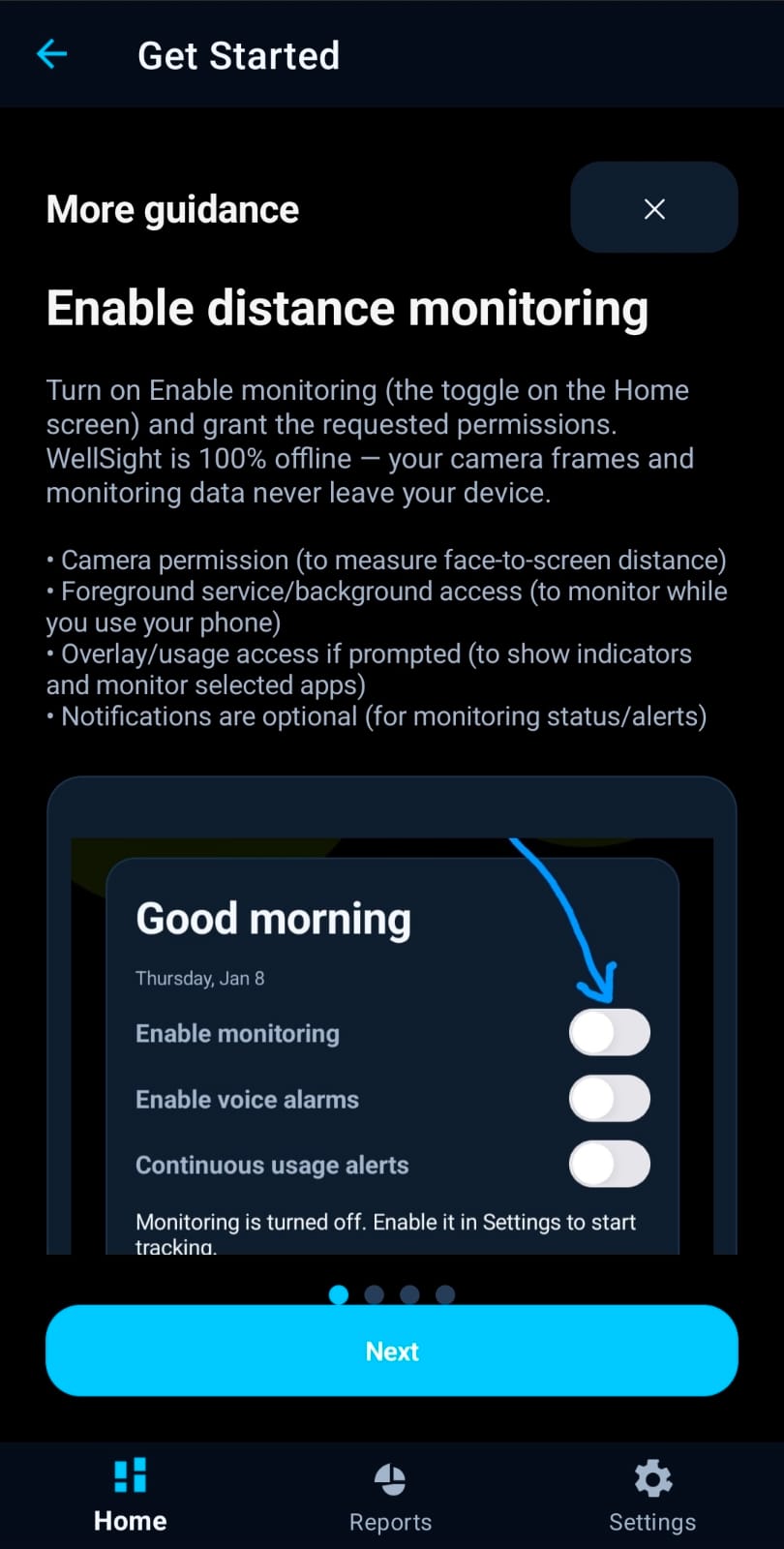
The first time you land on Home (after voice language setup), WellSight automatically opens the Get Started / More guidance carousel.

  • Enable distance monitoring: explains what permissions may be requested (Camera, Foreground service, and sometimes Usage Access/Overlay/Notifications).
  • Green distance indicator: explains the green circle distance overlay and the default monitoring cycle (checks happen in intervals and are configurable in Settings).
  • If monitoring stops: explains the power button (top-right on Home) to restart WellSight and recover if the camera gets stuck.
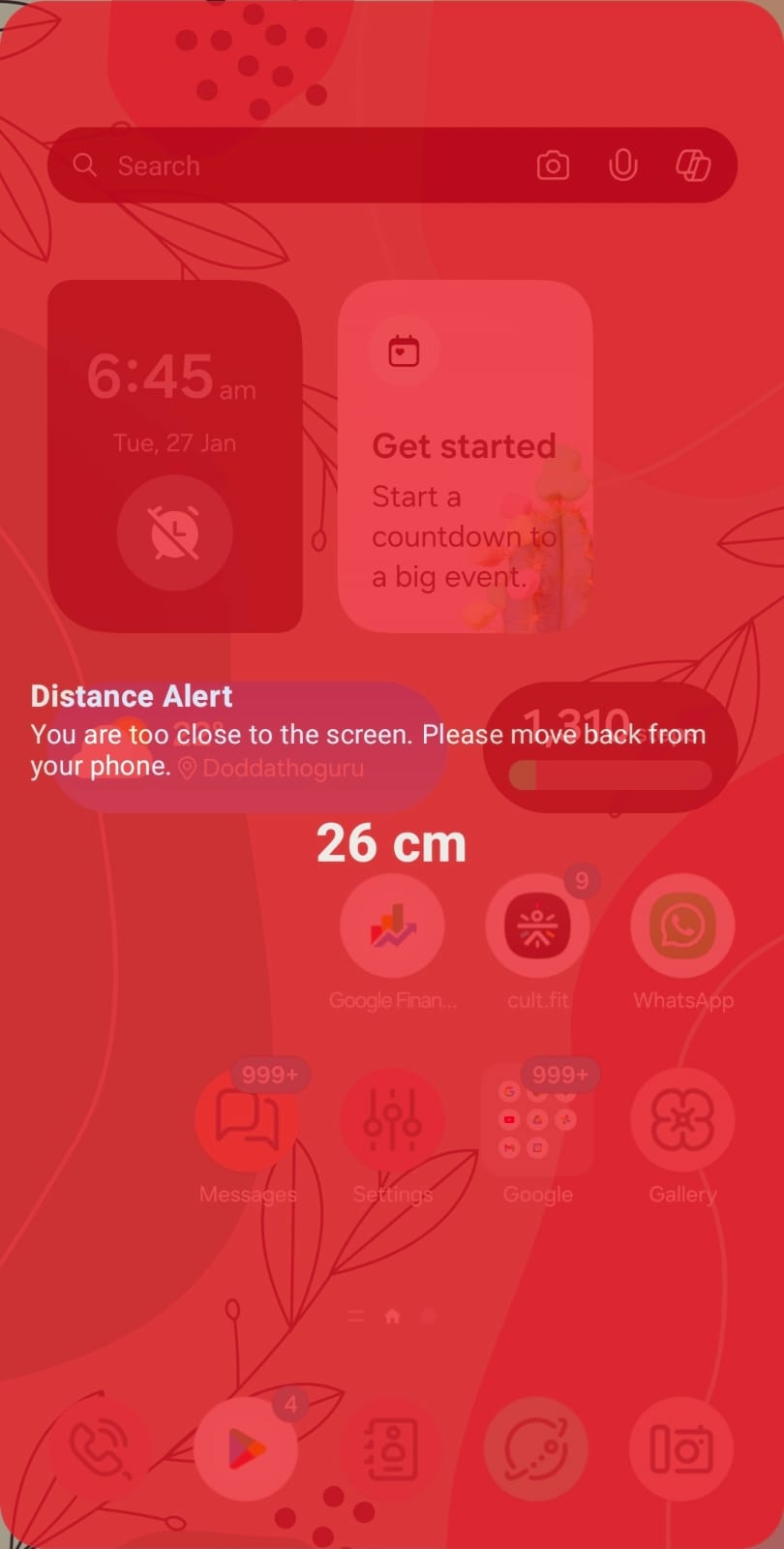
  • Full-screen distance alert: explains the threshold (default ~30 cm, configurable up to 60 cm).

Step 4 — Enable monitoring on Home

  • On Home, turn on Enable monitoring.
  • If prompted, grant the required permissions (WellSight only asks when you enable monitoring).
  • Optional: enable Enable voice alarms and/or Continuous usage alerts for stronger behavior support.

Screenshots (placeholders)

These are temporary placeholders so the page layout is complete. Replace them any time by dropping real images into website/images/wellsight/ with the same filenames.

WellSight Home screen placeholder
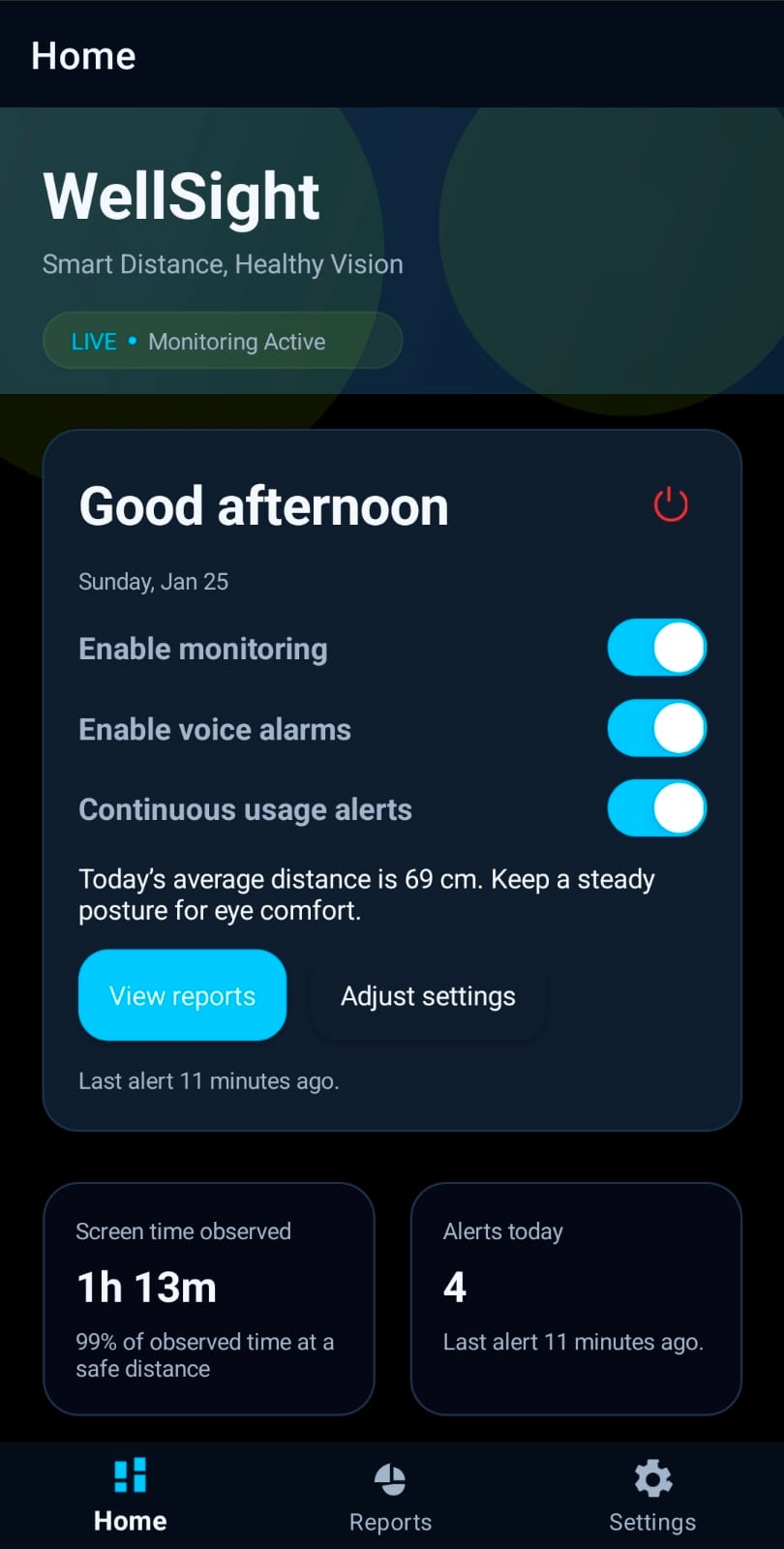
Home — monitoring status + quick actions
WellSight Voice Alerts setup placeholder
Voice Alerts — choose TTS language + test message
WellSight Monitoring intro carousel placeholder
More guidance — first-run monitoring intro carousel
WellSight Monitoring screen placeholder
Monitoring — indicator + too-close prompt
WellSight monitoring notification placeholder
Notification — ongoing monitoring / Smart Alerts status
WellSight Reports screen placeholder
Reports — trends and summaries

Monitoring experience (what you’ll see)

Monitoring is designed to be obvious, non-disruptive, and easy to stop. You should always be able to tell when monitoring is running, and you should be able to disable it quickly.

Monitoring indicator

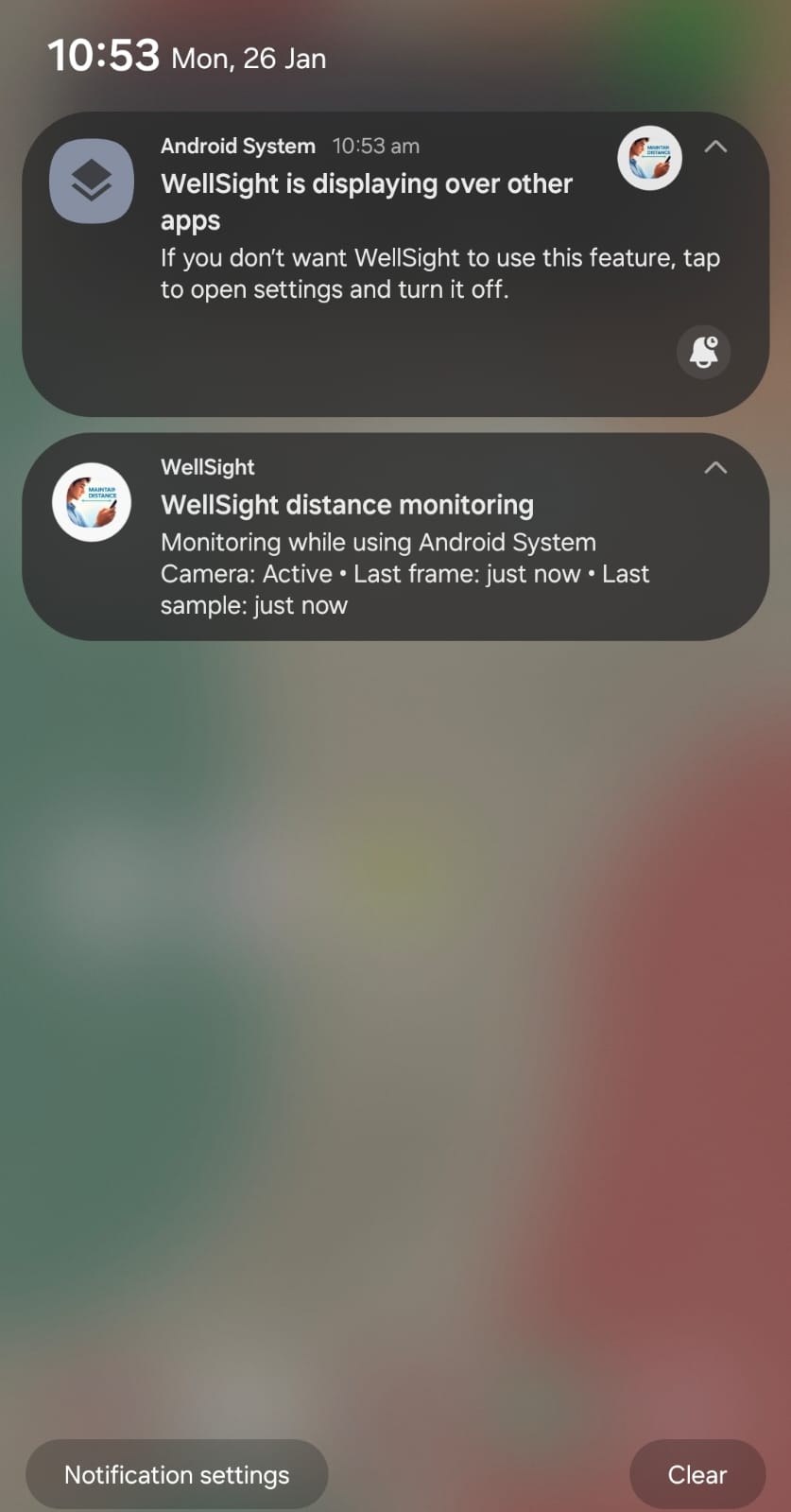
When a monitored app is active, WellSight uses a foreground notification and (optionally) a small overlay banner to indicate monitoring state.

What notification message you will see

WellSight uses an ongoing foreground-service notification. The exact text changes depending on whether the camera is actively checking distance, and whether Smart Alerts is running.

  • When camera checks are active: title “WellSight distance monitoring” and text like “Monitoring viewing distance” or “Monitoring while using <AppName>”.
  • When the camera is not active (service still running): title “WellSight” and text “Distance monitoring service running”.
  • If Smart Alerts is enabled and camera is inactive: title “WellSight” and text “Smart Alerts running” (or “Monitoring paused; Smart Alerts running”).
  • If monitoring gets stuck: the notification can show a stuck message and may offer an action like Restart WellSight or Open Settings.

Note: Notification visibility/priority is configurable in Settings → Monitoring & Apps (for example, turning the monitoring notification on/off and selecting priority).

Too-close prompt

If the measured distance drops below the configured threshold (commonly around 30 cm), WellSight surfaces a gentle prompt asking you to move the device further away.

Design principle: prompts should be helpful and brief—no shaming, no constant blocking overlays.

Camera checks are interval-based (battery-friendly)

WellSight does not need to hold the camera continuously. By default, distance monitoring runs in a cycle (for example: a few seconds on, a few seconds off), and you can tune this in Settings → Monitoring & Apps.

Power restart (recovery)

If the green distance indicator disappears or monitoring seems stuck after switching apps, use the built-in restart controls.

  • Home power button (top-right): restarts WellSight to recover camera monitoring.
  • Monitoring & Apps → Restart WellSight: a dedicated button for the same recovery flow.
  • In some stuck cases, the notification itself can show a Restart WellSight action.

Smart Alerts (productivity-focused)

Smart Alerts are designed to help you use your phone more intentionally. They can interrupt “autopilot scrolling” with voice reminders, continuous usage alerts, and app-specific nudges—so you get back to work, study, or rest.

How Smart Alerts helps you be productive

  • Break the loop: you get a reminder at the moment you’re drifting into long sessions.
  • Make it personal: use custom TTS text (type your own message) or record your own voice.
  • Harder to ignore: you can use repeating voice alarms and strong alert presentation (for example, repeat until dismissed) so the reminder actually lands.

Motivation quotes & work reminders (real examples)

You can type your own message and use it like a motivation quote or work alarm. For continuous usage alerts, WellSight supports placeholders:

  • {app} = the app you’re using (e.g., “YouTube”)
  • {minutes} = how long you’ve been using it

Example: “Stop scrolling {app}. You’ve been here {minutes} minutes. Back to your task.”

Suggested setup for “use less mobile”

  • Turn on Continuous usage alerts on the Home screen.
  • Go to Settings → Smart Alerts and pick a strong voice mode: Custom text (TTS) or Recorded voice.
  • Enable repeating/looping behaviors (where available) so you must actively dismiss the alert to continue.
  • Use App-specific reminders to target social apps while keeping work apps quiet.

Home (Dashboard)

Home is the “control center”: quick toggles for the most important behaviors plus lightweight stats and shortcuts. It’s where you’ll spend the most time: turning monitoring on/off, enabling Smart Alerts, restarting the app if the camera gets stuck, and jumping into Reports.

Top banner + main controls (exactly what’s on the screen)

  • App update banner: appears when an update is available; tap it to update from Play Store.
  • WelcomeTitle + TodayLabel: the greeting/header and “today” context label.
  • Power button (top-right): restarts WellSight to recover monitoring (especially if the green circle disappears or monitoring is stuck).
  • Enable monitoring: master switch for distance monitoring.
  • Enable voice alarms: enables voice-alarm style alerts (Smart Alerts).
  • Continuous usage alerts: enables continuous usage reminders (Smart Alerts).
  • WellnessSummary: a short summary text explaining current wellbeing status.
  • View reports: jumps to Reports.
  • Adjust settings: jumps to Settings.
  • LastAlertMessage: shows the most recent alert message as a small line at the bottom of the card.

Stats cards

  • Screen time observed: the observed monitoring time and a caption.
  • Alerts today: count plus most recent alert message.
  • Social usage headline: a progress bar view of social media time vs a target/limit (with label + status).

Eye comfort score

  • Shows a score + progress bar and a short status line.
  • Intended to summarise how “comfortable” viewing distance has been recently.

Daily coaching + Premium

  • Daily coaching: short tips (blink, posture, 20-20-20).
  • WellSight Premium banner: highlights paid features like unlimited distance monitoring, continuous usage alerts, voice alarms, and detailed app usage reports.
  • Unlock Premium button: the fastest way to start the purchase flow.

Premium (how to buy) — step-by-step

WellSight Premium unlocks unlimited monitoring-related features (and removes free-trial limits). The purchase flow uses the Play Store, and WellSight includes restore/manage tools so users don’t get stuck after reinstalling.

Fast path (recommended): buy from Home

  • Open Home.
  • In the WellSight Premium banner, tap Unlock Premium.
  • Complete the Play Store checkout (monthly/annual/lifetime options may be offered depending on availability).
  • Return to the app: Premium status updates and premium-only features become available.

When Premium is required

If you try to enable a Premium feature without an active subscription, WellSight can show a banner like “Premium required” in the setup flow with a Subscribe button.

Restore purchases / manage subscription

If Premium is already enabled on the device, WellSight offers a dedicated Manage Premium screen:

  • Restore purchases: refreshes Play Store entitlements after reinstall/device change.
  • Open Play Store subscriptions: opens the system subscription management page.

Reports

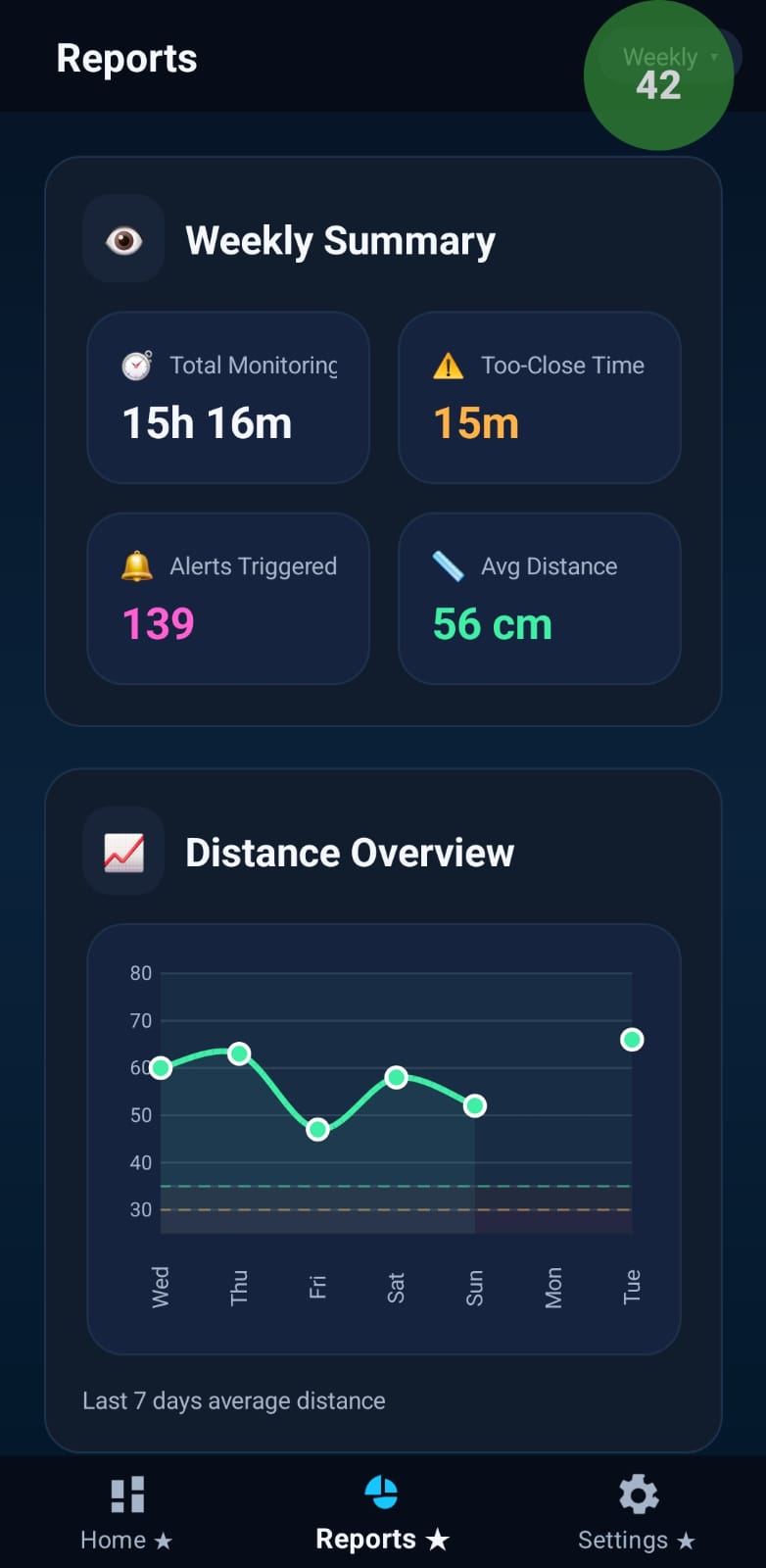
Reports are designed to be readable in under a minute: a top summary, a couple of charts, and an app-by-app table. Period selection (for example day/week/month) lives in the top-right control.

Summary (top cards)

  • Total Monitoring: total time WellSight observed while monitoring was active in the selected period.
  • Too-Close Time: the amount of monitored time that was classified as “too close”.
  • Alerts Triggered: how many prompts/alerts were raised in the selected period.
  • Avg Distance: average distance value over the period (when available).

Distance Overview (trend chart)

  • Shows the distance trend over the selected period (rendered as a chart).
  • Includes a label indicating the period being summarised (e.g., “last 7 days”).
  • For weekly/monthly views, can also show Best Day and Worst Day highlights.

Alerts Overview

  • Shows counts such as today vs this week (depending on selected period).
  • Includes an Alerts by hour chart and a “Peak” label (peak alert time).

App Usage Distance (table)

  • Per app row includes: app icon/initials, Total monitored, Alerts, and Avg distance.
  • Colour indicator helps you quickly spot apps with worse distance behaviour.

Insights + sharing

  • Insights: a short bullet list that summarises what changed or what’s notable.
  • Export as PDF: create a report file you can keep offline.
  • Share Weekly Report: share a weekly summary through Android share sheet.

Settings (every card and toggle)

This section mirrors the app’s Settings screens and explains what every card/toggle does. Names below match the in-app labels as closely as possible.

Settings (root) — category cards

  • Unlock & Security: controls whether Settings and/or the app requires a parent unlock (PIN/device password) and how quickly it auto-locks.
  • Monitoring & Apps: master monitoring switches, thresholds, per-app monitoring lists, exclusions, notifications, voice alerts, and calibration tools.
  • Smart Alerts: voice alarms, continuous usage reminders, app-specific reminders, and alert presentation behavior.
  • Data & Permission: retention controls, permission status + guided actions, and export/import of configuration.
  • About: subscription management, privacy/terms links, delete data, support links, and “review us”.
  • Diagnostics (hidden until enabled): debug logging tools and log sharing.

Unlock & Security — Security Options

  • Require unlock to open WellSight: when ON, the app is protected by parent-only unlock. This gates access to settings/controls until successfully unlocked.
  • Auto-lock timer: how quickly WellSight locks again after inactivity (selected from a list of preset options).

Unlock & Security — Unlock Methods

  • WellSight PIN Unlock: enable/disable using a WellSight PIN as an unlock method (only available if “Require unlock” is ON).
  • Device Password Unlock: allow unlocking via the device lock method (PIN/pattern/password/biometric as supported by Android; only when “Require unlock” is ON).
  • Backup code: enable a recovery code route if the usual unlock method isn’t available.
  • Forgot PIN: opens recovery options and backup methods.
  • PIN Settings: lets you set/change the PIN when PIN unlock is enabled; also shows lockout/failed-attempt status text.

Monitoring & Apps — Master Controls

  • Enable Monitoring: the main “on/off” for distance monitoring.
  • Auto turn off at night: automatically pauses monitoring at your chosen time.
  • Turn off time: time-of-day used when “Auto turn off at night” is enabled.
  • Monitor All Applications: when ON, WellSight monitors all apps by default (you then use Excluded Apps to skip specific apps). When OFF, monitoring applies only to apps you explicitly enable in Per‑App Monitoring.
  • Show valid distance overlay (green): shows a “good distance” overlay indicator when you’re within the safe range (not just warnings).
  • Auto-restart if camera unavailable: attempts recovery if the camera pipeline becomes unavailable.

Important (matches your feedback): In the current build, monitoring is designed to be broad by default via Monitor All Applications. You can still configure it to specific apps by switching Monitor All OFF and selecting only the apps you want.

Monitoring & Apps — Capture & Sensitivity

  • Camera Check Interval: how frequently WellSight samples/updates camera-backed distance checks (more frequent can impact battery).
  • Distance Sensitivity: slider to set the “too close” threshold in centimeters.
  • Warning note: aggressive intervals (e.g., 1s) can increase battery usage.

Monitoring & Apps — Per‑App Monitoring

  • Shows a list of apps currently selected for monitoring.
  • Each row has a toggle to include/exclude that specific app.
  • Manage monitored apps: opens the picker/selection flow to add apps.
  • If nothing is selected, the screen shows an empty-state message guiding you to “Manage monitored apps”.

Monitoring & Apps — Excluded Apps (only when “Monitor All Applications” is ON)

  • Lets you keep monitoring broad while pausing it for specific apps (exclusions list).
  • Shows selected exclusions as removable “chips”.
  • Manage exclusions: opens the exclusion manager so you can add/remove excluded apps.

Monitoring & Apps — Battery & Behavior

  • Pause when battery is low: pauses monitoring under a chosen threshold.
  • Pause below X%: slider to choose the low-battery threshold.
  • Pause when screen off: pauses monitoring when the display turns off.
  • Allow monitoring during Battery Saver: lets monitoring run even with Battery Saver on (this option is disabled while “Pause when battery is low” is enabled).

Monitoring & Apps — Notifications

  • Show monitoring notification: controls whether the foreground-service notification is shown while monitoring runs.
  • Notification priority: choose how prominent the notification is (with a description per option).

Monitoring & Apps — Voice Control

  • Enable voice alerts: master toggle for spoken warnings.
  • Use system voice message: uses Android TTS to speak warnings.
  • Speak TTS alerts in English: when OFF, TTS uses device language; when ON, forces English (shown only when supported).
  • Voice alert language & message: lets you edit the spoken text and language setup (when system voice is used).
  • Use custom voice message: record a short clip (the UI shows recording status, play, delete, and whether a clip exists).

Monitoring & Apps — Calibration & reset

  • Test Calibration: opens the debug/calibration monitor so you can validate distance detection.
  • Reset to defaults: restores monitoring settings to their defaults.

Smart Alerts — what’s inside

  • Enable Smart Alerts: master switch for reminders/alerts that run via foreground service + notifications (overlay optional).
  • Permissions: guided setup flow to grant required access.
  • Voice Alarms: enable voice alarms + manage alarm times/days and voice clips (if no clip is recorded, TTS is used). Voice Alarms also include loop settings: loop recorded voice and/or loop TTS until dismissed.
  • Continuous Usage Alert: enable continuous reminders; choose Track by mode, Alert after threshold, and Repeat every interval; customise the voice message (TTS template with placeholders or recorded voice).
  • App-Specific Alerts: optional per-app filtering for continuous usage reminders; includes search + per-app toggles.
  • Alert Behavior: choose presentation (notification vs full-screen overlay), whether to repeat until dismissed, and repeat interval (seconds) when applicable.
  • Quiet Hours: enable start/end times; during quiet hours Smart Alerts suppress voice/overlays.

Data & Permission

  • Auto-delete monitoring data: when ON, data older than 31 days is removed automatically (status text indicates last/next purge).
  • Permissions: shows a list of required permissions with status (tap a permission row to perform the suggested action); includes Refresh permissions.
  • Data Portability: Export Settings and Import Settings to move configuration between devices or keep a backup.

About

  • Manage Subscription: opens subscription management.
  • Privacy: open Privacy Policy, Terms of Use, and Delete all data (button text may vary based on state).
  • Review us: opens Play Store rating flow.
  • Help: setup videos, support email, and website link.

Diagnostics (hidden)

  • Diagnostics are hidden by default. The app indicates you can enable them by tapping “WellSight” 5 times on the Settings page.
  • Once enabled: toggle hidden debug logging (general + foreground service), review bootstrap logs (expand/collapse), and share logs.
  • Tools include “View Logs” and “Open Debug Monitor”, plus a “Hide Diagnostics” action.

Privacy & data handling

WellSight is designed to minimise sensitive data. Distance monitoring is performed on-device, and the app aims to avoid storing or transmitting images.

What we do

  • Compute distance estimates locally on the device.
  • Show visible indicators while monitoring is active.
  • Store lightweight event summaries (timestamps + status) to support Reports.

What we don’t do

  • We don’t upload camera frames for cloud processing as part of monitoring.
  • We don’t sell personal data.
  • We don’t silently enable monitoring on install.

FAQ

Does WellSight record or store photos/videos?

The intended design is to process frames on-device only for distance estimation and not persist images. Reports are based on simple event summaries (e.g., “too close” count/time patterns).

Will monitoring run all the time?

Not continuously. Monitoring is controlled by your settings. If Monitor All Applications is enabled, WellSight can monitor broadly (with exclusions). If it’s disabled, monitoring applies only to the apps you enable in the per-app list. Camera checks are interval-based and configurable for battery comfort.

Why is there a persistent notification?

Because WellSight uses a foreground service while monitoring. This is both a platform requirement and an explicit transparency feature so you always know when monitoring is active.

Is this medical advice?

No. WellSight is a habit-support tool. For medical concerns, consult a qualified professional.

Roadmap (what’s next)

WellSight is evolving. Typical roadmap items include better distance estimation, richer reporting, and stronger configuration controls—without compromising privacy.

Next
More insights
Time-of-day patterns, streaks, and app breakdown improvements.
Next
Better onboarding
Clear setup guidance and permission rationale exactly when needed.
Next
Accessibility polish
High-contrast visuals and screen-reader friendly prompts.
Next
Performance
Lower battery footprint and robust “start/stop instantly” behavior.